
Ever find yourself with duplicate profiles, test accounts, or records that simply must disappear? We get it—you need a clean slate! GoCo gives you the power to permanently delete all records for a team member, but this feature comes with a huge responsibility.
Let’s walk through the steps to permanently delete a profile and, more importantly, discuss why termination is often the better choice for compliance and audit-readiness.
⚠️ Before You Delete: The Crucial Difference
When dealing with employee records, you generally have two main options:
| Option | Outcome | Audit/Compliance Impact |
| Delete All Records | Permanent and irreversible removal of the employee's entire profile, history, documents, and data from GoCo. | High Risk. The data is gone forever. DO NOT use this option for employees who have worked for your company and whose records you might need for future audits or compliance checks. |
| Terminate | The employee's record is moved to an inactive/terminated status. All historical data, documents, and employment history are retained in GoCo and can be easily accessed for audit purposes. | Low Risk. This is the recommended method for all former employees (transfers, resignations, etc.). |
Use the "Delete All Records" option only for truly bad data, like duplicates or profiles created by mistake.
🚀 Step-by-Step: Deleting an Employee Record
Ready to erase that accidental profile for good? Follow these steps:
Step 1: Navigate to the Team Member’s Profile
-
Log in to GoCo and go to your Team page from the left menu.
-
Find and click on the specific team member whose profile you wish to delete.
Step 2: Access the Action Button
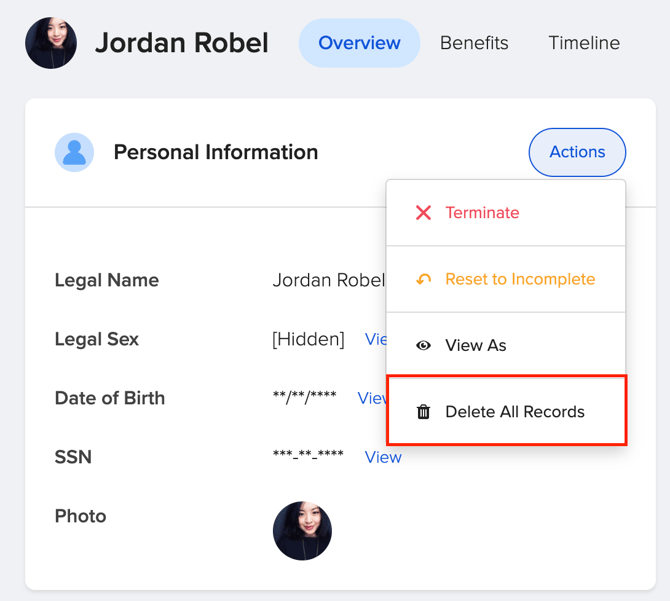
Once on the employee’s profile, look for the "Action" button in the top right corner of the page, right next to their personal information.
Step 3: Select "Delete All Records"
Click the Action button, and a drop-down menu will appear.
-
You will see options like: Terminate, Reset to Incomplete, View As, Delete All Records.
-
For this specific use case, select the Delete All Records option.
Step 4: Confirm the Permanent Deletion
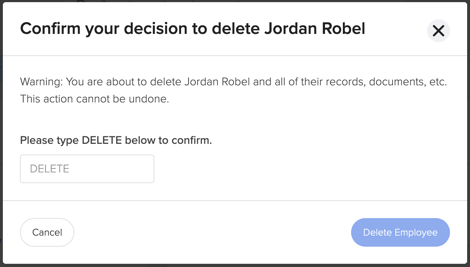
GoCo will present you with a final warning. This is your last chance!
🚨 A very important note about using this button is that when you choose to delete all records, you will no longer be able to get this information back anymore.
Because this action is permanent, please choose wisely when using this button.
-
If you need to keep an employee for audit purposes, it's strongly recommended to use the Terminate button so that you don't lose their historical information.
-
Once you type DELETE to confirm, the employee profile and all associated data will be permanently removed from your GoCo account. Congratulations on your clean data!
If you have additional questions please reach out to support@goco.io