
Method 1: Downloading via the Documents Module
Use this method when you are already working inside the Documents app and know which document template you need to grab an instance of.
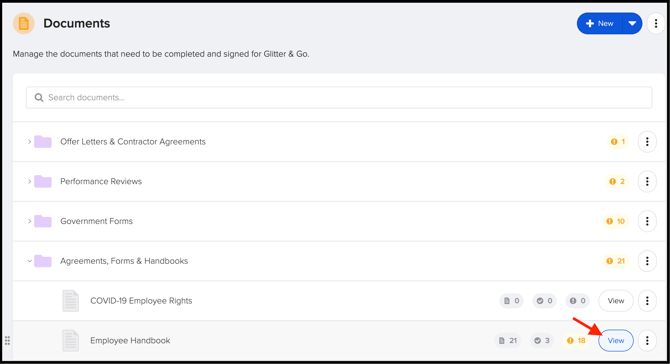
- Navigate to Documents: From your main GoCo navigation menu, click on the Documents module.
- Locate the Document: Find the specific document template you are looking for (e.g., Employee Handbook).
- Click "View": Click the View button next to the document template to open its instance tracking page. Here, you can see all sent, completed, and incomplete instances for every assigned employee!
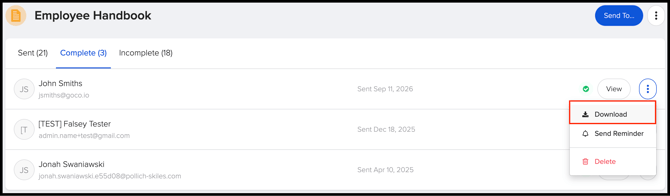
- Find Your Employee: Search or scroll to find the specific employee’s instance you wish to download.
- Download: Click the ellipsis button on the far right of that employee's instance row and select Download. Your file will immediately begin downloading to your device! 📥
Method 2: Downloading via the Employee's Profile
Use this method when you're already viewing a specific team member’s profile and need to quickly grab one of their documents.
- Navigate to the Employee's Profile: Go to the Team tab and select the employee's profile.
- Scroll to Documents: Scroll down their profile page to locate the Documents card.
- Expand the Folder: Click to expand the folder containing the document you need.
- Locate the File & Download: Find the individual document, click the ellipsis icon on the right side of that specific document row, and select Download.
Frequently Asked Questions (FAQ) ❓
Q: Can employees download their own individual documents? A: Yes! Employees can navigate to My Profile > Documents, expand any folder, and click the ellipsis next to any completed document to download a copy for their personal records.
Q: What file format will the downloaded document be in? A: The document will download in its original uploaded format (typically PDF) with all captured digital signatures, dates, and form field entries fully flattened onto the document.
Q: What if the document status says "Incomplete"? A: If an instance is incomplete, downloading it via the Documents module will download the uncompleted template draft or initial state. Once the employee completes and signs it, the downloaded file will reflect the completed version!
Have more questions about managing employee documents? Reach out to our support team at support@goco.io — we're always happy to help! 💚