
As a hiring and onboarding specialist, you know that great benefits are a huge differentiator for candidates considering a new role. GoCo’s Benefit Enrollment Preview Link is an essential tool for providing transparency and making your hiring process more competitive.
This feature allows you, the HR Administrator, to generate a unique, customizable link that job candidates can use to view potential benefit options and estimated costs before they are officially hired or start their full enrollment process.
This article will walk you through the simple steps to create a dynamic Benefit Enrollment Preview Link.
Note: Only Administrators with access to Manage Benefits will be able to generate these links.
🛠️ Step-by-Step Guide: Creating Your Preview Link
Follow these steps to generate a link that showcases the benefits package for a specific role or department. You can create multiple templates for different positions or employment types.
1. Access the Benefits Module
-
Log in to your GoCo admin account.
-
From your Company page, locate the Benefits card and click "View".

2. Navigate to the Preview Tab
-
You are now on the Benefits Overview page.
-
Find the Preview tab (it’s the second-to-last tab at the top of the page) and click on it.
3. Create a New Preview Link
-
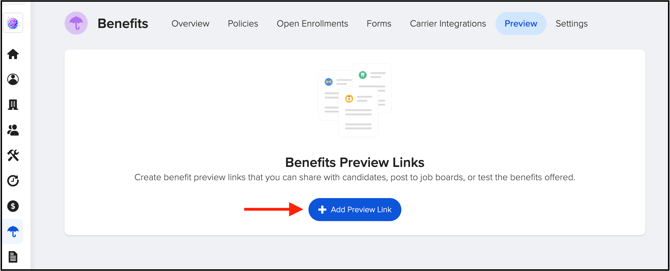
On the Preview page, click the blue "+ Add Preview Link" button.
-
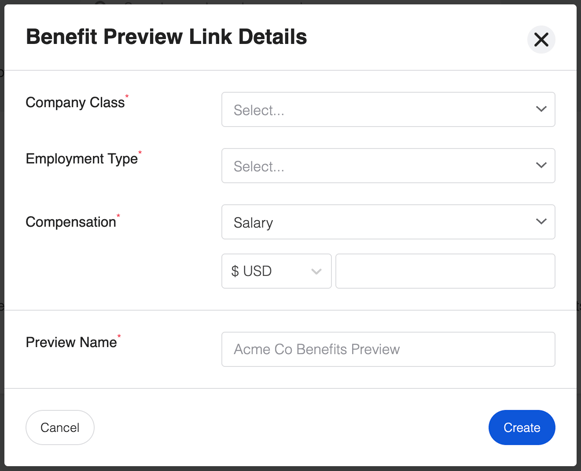
A window will pop up where you can fill out the preview link details.
4. Specify the Employment Details
To ensure the preview accurately reflects the benefits available to the candidate, you will need to specify certain employment information:
- Compensation
- Company Class
- Payroll Schedule
- Employment Type
Note: You can edit this information at any time after the link has been created.
5. Finalize and Share
-
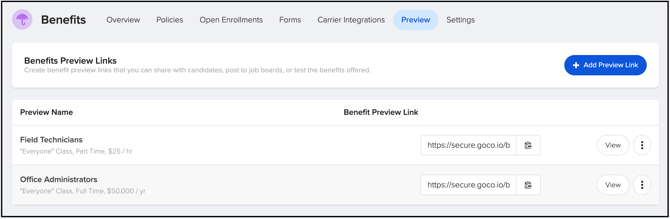
Once you have filled out all the necessary details, click "Create".
-
The new link will be generated! You can now copy and paste it into job descriptions, offer letters, or pre-boarding communications.
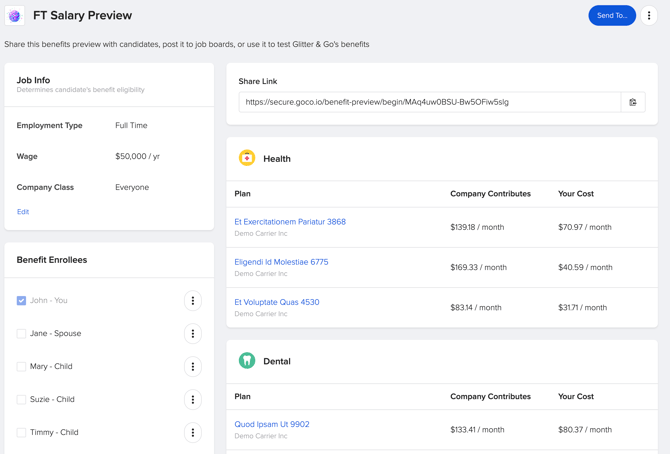
Feature Candidate View in Preview Link Important Note Benefits Plan options, estimated deductions, and cost breakdowns. Disclaimer: Candidates see a disclaimer that benefit plans and rates may change. The most up-to-date information is always in their profile after onboarding. Personal Data Candidates can enter sample personal/dependent info. NO DATA IS SAVED: The preview will not save any personal or dependent data. Elections are only saved during the true enrollment window after onboarding. Effective Date This is not displayed. The link does not show the exact effective date or company waiting period, as this information can frequently change.
💡 What Candidates See (and Why it Matters)
When a job candidate clicks the link, they can enter sample data to see benefit options and an estimate of their cost. This allows them to make informed financial decisions early in the hiring process.
Check out our Frequently Asked Question Article on this topic.
If you have additional questions please contact support@goco.io 💚